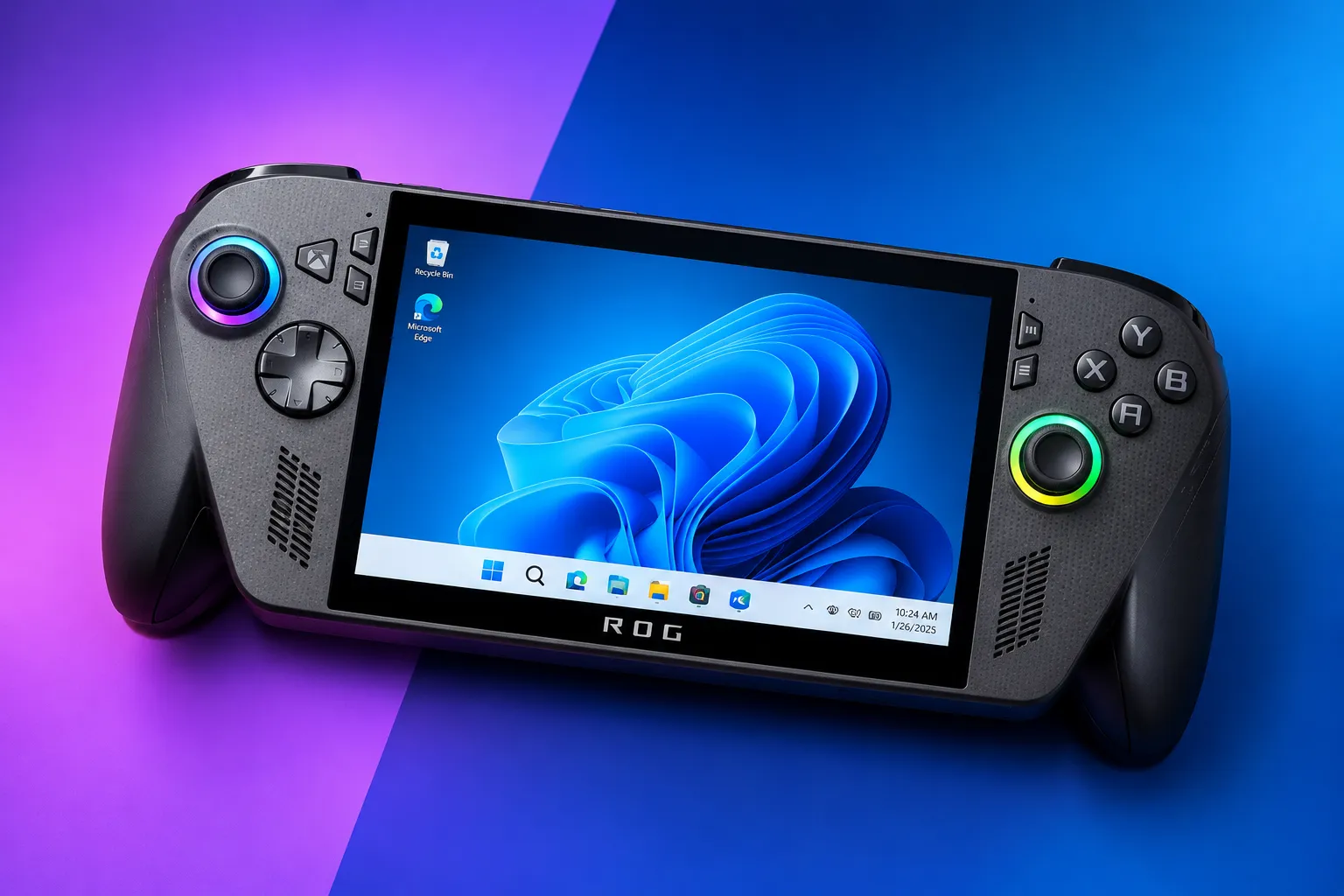
Microsoft Auto SR is now available on the ROG Xbox Ally X, Xbox Ally X20 and select AMD Ryzen-powered Copilot+ PCs. The updated AI upscaling technology works while gaming handhelds run on battery power, removing the docking requirement that limited its earlier preview release.
Microsoft announced the expansion on November 10, 2026, alongside support for 1080p gaming. Windows updates are also introducing a new Performance Mode designed to reach up to 120 frames per second, along with compatibility with Windows Auto HDR.
Handheld support and 1080p compatibility are available now on eligible devices. Performance Mode and Auto HDR integration are rolling out gradually, so some users may not see those options immediately.
Microsoft Auto SR Now Works Without a Dock
Automatic Super Resolution is Microsoft’s Windows-level AI upscaling technology. It allows compatible games to render at a lower resolution before reconstructing the image at a higher resolution, reducing the graphics workload while preserving visual detail.
Unlike game-integrated solutions such as Nvidia DLSS and AMD FidelityFX Super Resolution, Auto SR operates through Windows. It uses a neural processing unit (NPU) to handle image reconstruction separately from the graphics processor.
This approach lets the GPU keep rendering frames while the NPU processes the image. However, it introduces an additional frame of latency, making the balance between responsiveness and image quality important.
Microsoft initially introduced Auto SR for supported Copilot+ PCs before testing it on the ROG Xbox Ally X in April 2026. The handheld preview required an external display, limiting its usefulness for portable gaming.
The latest release removes that restriction. Players can now enable Auto SR directly on a compatible handheld’s built-in screen, including when the device is unplugged.
Microsoft detailed these improvements in its official DirectX developer announcement.
New Performance Mode Targets Up to 120fps
The updated technology introduces a Performance Mode that raises Auto SR’s previous frame-rate ceiling of about 60 to 75fps to up to 120fps.
Microsoft demonstrated the difference using Rocket League on the ROG Xbox Ally X. With the game running at 720p and high graphics settings, Quality Mode averaged approximately 70fps, while Performance Mode averaged 115fps.
Those figures come from Microsoft’s demonstration rather than independent testing. Actual improvements will depend on the game, hardware configuration, graphics settings and available processing resources.
Players can switch between Quality and Performance modes through Xbox Game Bar. Quality Mode prioritizes reconstructed image detail, while Performance Mode emphasizes higher frame rates.
The change matters most in competitive games, where smoother motion and responsiveness often matter more than maximum visual quality.
TechAmerica previously examined AI frame generation and gaming performance, explaining how image reconstruction differs from technologies that generate additional frames between conventionally rendered images.
1080p Gaming and Auto HDR Support
Microsoft has also expanded Auto SR to support games running at 1080p. During the preview, users often needed to reduce their game’s resolution before the feature would activate.
The new support removes that additional step for compatible configurations. When a handheld connects to a higher-resolution TV or monitor, Auto SR can reconstruct 1080p gameplay at up to 1440p.
Microsoft cautions that running Auto SR at 1080p on a handheld’s internal display may not deliver optimal performance. Older games may still benefit from improved visual detail.
Another improvement lets Auto SR and Windows Auto HDR work together. Previously, players had to choose between the two features.
Auto HDR enhances the appearance of supported games that lack native high dynamic range support when connected to a compatible HDR display. Combined with Auto SR, it can improve image detail and HDR presentation without requiring developers to integrate both technologies directly.
Compatibility still depends on the game, display, and hardware. The additional features do not guarantee higher frame rates or better image quality in every configuration.
Which Devices Support Microsoft Auto SR?
The release supports the ROG Xbox Ally X and the newer Xbox Ally X20, along with select Windows 11 Copilot+ PCs equipped with compatible AMD Ryzen AI processors.
Support is not universal across Windows gaming systems. Eligible hardware must meet Microsoft’s NPU and software requirements, and individual games must also be compatible.
Microsoft’s Auto SR support documentation explains the technical requirements, supported configurations and available controls.
Compatible games generally use DirectX 10 or later. Older DirectX 9 titles, Vulkan and OpenGL games, and 32-bit x86 applications are not supported under the current requirements.
Auto SR is also optional, not a setting automatically applied to every game.
TechAmerica previously covered AMD’s plans to expand FSR 4 to gaming handhelds, another effort to improve graphics performance on portable hardware.
How to Enable Auto SR on Windows 11
Users with compatible hardware should first install the latest Windows 11 updates and update Xbox Game Bar. Users must also install or update the Auto Super Resolution package through the Microsoft Store.
Once those requirements are met, players can open Xbox Game Bar by pressing the Xbox button or Windows key + G. The feature appears under Widgets, Display and Graphics.
From there, users can select Quality Mode or Performance Mode when the latter becomes available on their device. Game Bar also provides information about supported resolutions and whether Auto SR is operating.
Microsoft has not announced a specific completion date for the Performance Mode and Auto HDR rollout. The company says both features will arrive through Windows updates.
The expanded release makes Auto SR more practical for supported handhelds by allowing AI upscaling during portable play. Its usefulness will depend on game compatibility, actual performance gains and the balance between image quality and input latency.